
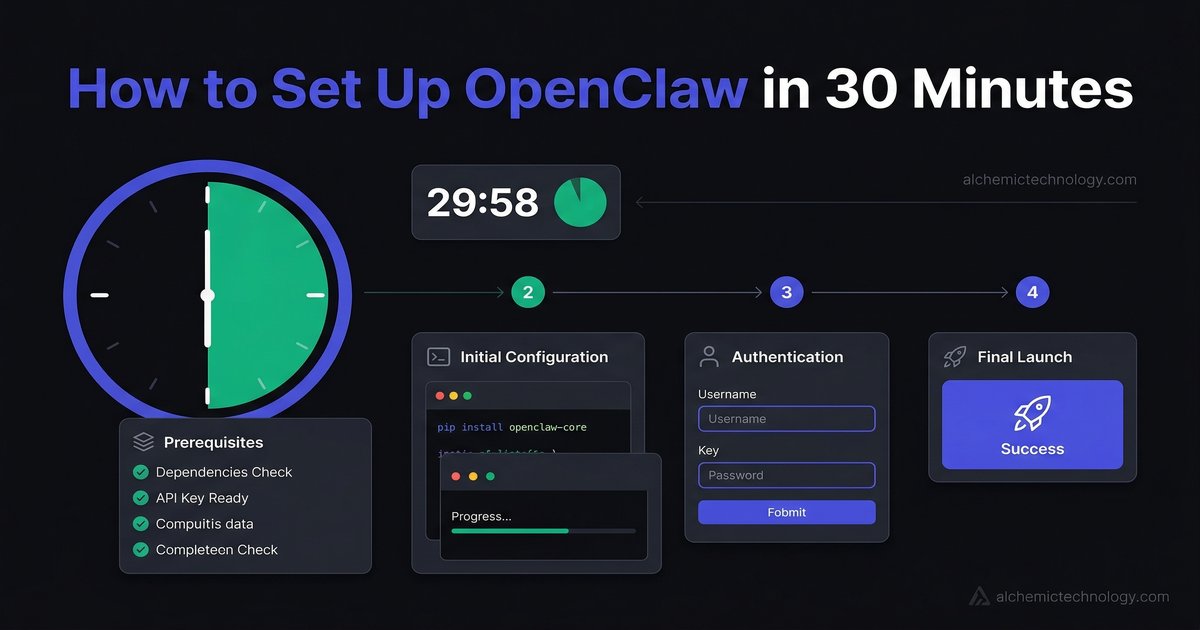
OpenClaw is the open-source AI gateway that lets you run a personal AI assistant on your own infrastructure. It connects to any major LLM provider — Anthropic, OpenAI, Google, MiniMax — and pipes everything through your messaging apps: Telegram, Discord, WhatsApp, Signal.
The result is an AI assistant that remembers who you are, runs 24/7, and does whatever you teach it to do. No subscription to someone else's platform. No data leaving your server unless you decide it should.
This guide walks you through the complete setup. By the end, you will have a working OpenClaw agent responding to messages in Telegram.
What You Need
- A server or machine — A Linux VPS ($4-12/month from DigitalOcean, Hetzner, or Hostinger), a Mac, or Windows with WSL2
- Node.js 22+ — OpenClaw runs on Node
- An LLM API key — From Anthropic (Claude), OpenAI (GPT), Google (Gemini), or MiniMax (free tier available)
- A Telegram account — For your first messaging channel
Which LLM should you start with? For best quality, go with Anthropic Claude. For free, MiniMax M2.5 has a generous free tier with a 200K context window. You can always switch or add more providers later — OpenClaw supports multiple simultaneously.
Phase 1: Install OpenClaw (5 minutes)
First, verify your Node.js version:
node --version
# Should output v22.x.x or higher
If you need to install or update Node.js:
# Using nvm (recommended)
curl -o- https://raw.githubusercontent.com/nvm-sh/nvm/v0.40.1/install.sh | bash
source ~/.bashrc
nvm install 22
nvm use 22
Now install OpenClaw globally:
npm install -g openclawRun the onboarding wizard — this handles initial configuration and sets up the background daemon:
openclaw onboard --install-daemonThe onboarding wizard walks you through most of the heavy lifting automatically: creating your workspace, installing the gateway as a background service, picking your first LLM provider and auth method, and optionally connecting your first messaging channel. For most users, the wizard alone gets you to a working setup — the manual steps below fill in anything you want to customize afterward.
Once complete, verify everything is running:
openclaw gateway status
# Should show "running" with an active PID

openclaw doctor
# Checks for common configuration issues
Troubleshooting: Gateway Won't Start
openclaw gateway statusshows "stopped" → runopenclaw gateway start- Port conflict → check if another process is using the gateway port
- Permission issues → ensure your user owns the
~/.openclawdirectory
Phase 2: Add Your LLM Provider (5 minutes)
OpenClaw needs at least one AI provider. Open your configuration file at ~/.openclaw/openclaw.json and add your provider credentials:
Option A: Anthropic (Claude)
The most straightforward way is an API key from console.anthropic.com:
{
  "providers": {
    "anthropic": {
      "apiKey": "sk-ant-your-key-here"
    }
  }
}
Prefer a Claude subscription over pay-per-token? OpenClaw also supports the setup-token flow, which lets you authenticate using an existing Claude Pro or Max subscription instead of a separate API key:
# Generate a token in the Claude CLI, then register it with OpenClaw
claude setup-token
openclaw models auth setup-token --provider anthropic

# Or paste a token you generated elsewhere
openclaw models auth paste-token --provider anthropic
Setup-Token Note
This method is technically supported but carries a policy risk — Anthropic has restricted subscription use outside Claude Code for some users in the past. API key auth is the safer long-term path. Check Anthropic's current terms before relying on setup-token in production.
Option B: OpenAI (GPT)
{
  "providers": {
    "openai": {
      "apiKey": "sk-your-key-here"
    }
  }
}
Option C: MiniMax (Free Tier)
{
  "providers": {
    "minimax-portal": {
      "apiKey": "your-minimax-key"
    }
  }
}
Security note: Never commit API keys to version control. For production setups, use a separate secrets.env file with restricted permissions (chmod 600). The OpenClaw Field Guide covers proper secrets management in detail.
Set your default model in the same config:
{
  "agents": {
    "defaults": {
      "model": "anthropic/claude-sonnet-4-6",
      "models": {
        "anthropic/claude-sonnet-4-6": {}
      }
    }
  }
}
Restart the gateway to pick up changes:
openclaw gateway restartPhase 3: Connect Telegram (5 minutes)
Telegram is the fastest channel to configure. Here is the process:
- Create a bot — Open Telegram, search for
@BotFather, send/newbot, and follow the prompts. You will receive a bot token. - Add the token to your config:
{
  "channels": {
    "telegram": {
      "token": "your-bot-token-from-botfather"
    }
  }
}- Restart the gateway and test it — Find your bot in Telegram and send it a message. You should get a response from your configured LLM.
That is it. You now have a working AI assistant on Telegram. But it is a blank slate — it does not know who it is or what it should do. That is where workspace files come in.
Phase 4: Give Your Agent a Brain (10 minutes)
OpenClaw's workspace is a directory of files that your agent reads at the start of every conversation. This is what makes it fundamentally different from ChatGPT or a basic API wrapper — your agent has persistent, editable context.
Navigate to your workspace:
cd ~/.openclaw/workspaceSOUL.md — Who Your Agent Is
This file defines personality, voice, and behavioral rules:
# Who I Am
I am Atlas, a focused and practical AI assistant.

## Personality
- Direct and concise
- Technical depth when needed, plain language by default
- I admit when I do not know something

## Rules
- Never delete files without asking first
- Always cite sources for factual claims
USER.md — Who You Are
# About My Human
- **Name:** [Your name]
- **Timezone:** [Your timezone]
- **Focus:** [What you mainly use this for]
- **Preferences:** Concise answers, code examples when relevant
MEMORY.md — Long-Term Memory
# Memory
## Key Facts
- [Important context your agent should always remember]

## Decisions
- [Track decisions so your agent does not re-litigate them]
Also create the daily memory directory:
mkdir -p memoryRestart one more time to load everything:
openclaw gateway restartSend your bot another message. It should respond with the personality you defined.
Phase 5: Make It Useful (5 minutes)
Add a Heartbeat
The heartbeat system lets your agent check in periodically and do background work. Create HEARTBEAT.md in your workspace:
# Heartbeat Checklist
- [ ] Check if any reminders are due
- [ ] Review pending tasks in MEMORY.md
- If nothing needs attention, reply HEARTBEAT_OK
Add a Cron Job
Cron jobs run tasks on a schedule:
# Daily morning briefing at 8am
openclaw cron add \
  --schedule "0 8 * * *" \
  --prompt "Good morning. Check my calendar and give me a brief for today."
What You Should Have Now
Your 30-Minute Checklist — Complete
- ✅ OpenClaw installed and gateway running
- ✅ LLM provider configured
- ✅ Telegram channel connected and responding
- ✅ Agent persona defined (SOUL.md, USER.md, MEMORY.md)
- ✅ Background automation started (heartbeat + optional cron)
Choosing Your AI Provider: What It Actually Costs
OpenClaw connects to any major LLM provider, and your ongoing cost depends entirely on which one you choose. Here is how the main subscription options compare as of early 2026:
ChatGPT (OpenAI)
- Free — Basic GPT access with usage caps (10 messages every 5 hours on top models)
- Go — $8/month — More access, removes most rate limits for casual use
- Plus — $20/month — Priority access, higher limits, access to all GPT models
- Pro — $200/month — Unlimited GPT access + advanced reasoning modes
Note: ChatGPT subscription auth (via OAuth) is the officially supported way to use OpenAI with OpenClaw. The onboarding wizard handles this flow.
Claude (Anthropic)
- Free — Daily message limits, access to Sonnet and Haiku
- Pro — $20/month ($17/month billed annually) — More usage, all Claude 4.6 models, Claude Code
- Max — from $100/month — 5x or 20x Pro usage, priority access during peak times
For OpenClaw, the recommended path is an Anthropic API key (pay-per-token) rather than a subscription, unless you already have a Pro or Max plan and want to use the setup-token method described above.
MiniMax — Best All-Around Value
MiniMax offers two ways to pay — pure pay-as-you-go or a flat-rate Token Plan subscription. Both are significantly cheaper than Claude or ChatGPT at equivalent usage levels:
Pay-as-you-go API
- M2.5 / M2.7 — $0.30/M input tokens, $1.20/M output tokens
- Free tier available — new accounts get a credit to start for free
- No monthly commitment, no seat fees
Token Plan (subscription) — Standard Plans
- Starter — $10/month ($100/year) — 1,500 M2.7 requests per 5 hours
- Plus — $20/month ($200/year) — 4,500 requests/5hrs + speech + image generation
- Max — $50/month ($500/year) — 15,000 requests/5hrs + full multimodal access (speech, image, video, music)
Highspeed plans (dedicated M2.7-highspeed access) start at $40/month and scale up to $150/month for Ultra-Highspeed.
Why MiniMax wins on value: The $10/month Starter plan gives you 1,500 M2.7 requests every 5 hours — that is a flat rate covering everything from a personal assistant to a small production agent, for less than the price of a ChatGPT Go subscription. Pay-as-you-go at $0.30/M input tokens is roughly 10× cheaper than Claude Sonnet for the same volume. For OpenClaw users running a 24/7 personal agent, MiniMax is consistently the best performance-per-dollar option in the ecosystem.
Where to Go From Here
- Add more channels — Discord, WhatsApp, Signal, or Slack
- Install skills — Plugins that give your agent new capabilities
- Set up sub-agents — Delegate specialized tasks to different AI models
- Harden security — Lock down permissions, manage secrets, set up monitoring
- Build workflows — Chain tools together for complex automation
Each of these topics could fill its own article. But if you want the complete picture in one place, organized and tested against real production deployments, that is exactly what we built the Field Guide for.
Go From Setup to Production-Ready
The OpenClaw Field Guide is 58 pages across 14 chapters of exactly this — setup, configuration, skill routing, memory architecture, cron automation, and multi-agent delegation. Everything you need to go from installed to indispensable.
Get the Field Guide — $10 →